



 647-812-5125


Migrating your store to Shopify isn’t just a setup task. It’s where things can break.
Data can go missing. SEO rankings can drop. And small setup issues can impact your checkout.
That’s exactly where a Shopify migration checklist makes a difference.
It leads you through each stage so nothing is forgotten before going live. Whether you’re managing a complete migration or following a Shopify store launch checklist, a well-defined process keeps things smooth.
What Is a Shopify Migration Checklist?
A Shopify migration checklist is a structured guide designed to help you move your eCommerce store to Shopify smoothly. It helps protect your data, SEO rankings, and store functionality while covering every stage—from planning and migration to setup, testing, and launch.
You may also see it called a Shopify checklist before launch or a Shopify go-live checklist, especially when focused on the final steps before going live.
Shopify Migration Checklist (Quick Overview Table)
If you just want a quick view before getting into the details, this checklist covers the main steps most stores go through when migrating to Shopify.
You don’t need to follow it in a rigid way, but missing any of these usually shows up later.
Complete Shopify Migration Checklist by Phase |
|||
|---|---|---|---|
| Phase | Task | Why It Matters | What Can Go Wrong |
| Planning | Review your current store (products, pages, customers) | Gives you a clear picture of what needs to move | Things get left behind without you realizing |
| Planning | Take a full backup | Acts as a safety net if something breaks | You may not be able to recover lost data |
| Planning | Set clear goals for the migration | Helps guide decisions during setup | The project drifts without direction |
| Planning | Freeze content before migration | Keeps old and new data in sync | New data won’t carry over properly |
| Planning | List and map all existing URLs | Helps you prepare redirects later | Old links stop working |
| Store Setup | Pick and adjust your Shopify theme | Shapes how your store looks and feels | Poor layout or confusing UX |
| Store Setup | Install key apps and integrations | Replaces features from your old platform | Important functionality may be missing |
| Store Setup | Set up payments | Allows customers to complete orders | Checkout won’t work |
| Store Setup | Configure shipping rules | Ensures correct delivery charges | Wrong shipping costs |
| Store Setup | Set up taxes | Keeps things compliant | Incorrect tax collection |
| Store Setup | Add legal pages (T&C, privacy & cookie policy) | Builds trust and covers requirements | Missing policies can raise issues |
| Data Migration | Move product data (including categories, variants, and images) | Make sure your catalog is complete | Products show up incorrectly, in the wrong collections, or with missing details |
| Data Migration | Import customer data (accounts, emails, details) | Keeps your customer records and contact data intact | Customer data may be incomplete or missing |
| Data Migration | Handle customer account passwords (reset required) | Passwords cannot be transferred to Shopify from other platforms | Customers cannot log in until they reset their password |
| Data Migration | Transfer order history if needed | Useful for reporting and support | Loss of past data for reference |
| Data Migration | Recreate pages and blog content | Maintains your content structure | Missing or incomplete pages |
| SEO | Set up 301 redirects | Sends users and search engines to the right pages | Traffic drops and broken links |
| SEO | Bring over meta titles and descriptions | Keeps your search visibility stable | Rankings may drop |
| SEO | Fix internal links | Helps users and search engines move through the site | Some pages become hard to find |
| SEO | Submit sitemap to Google | Helps Google discover your new pages faster | Pages take longer to appear in search |
| Testing | Test the checkout flow | Confirms customers can actually buy | Orders fail at checkout |
| Testing | Check product and customer data | Makes sure everything looks right | Data errors show up after launch |
| Testing | Go through navigation and links | Helps catch small issues early | Broken links hurt the experience |
| Testing | Check mobile experience | Most traffic is mobile | Poor usability on phones |
| Testing | Place a few test orders | Confirms end-to-end flow | Issues only show after real orders |
| Testing/Pre-Launch | Prepare customer communication (for password reset + store update) | Sets expectations before launch and reduces confusion | Customers may get locked out & receive a flood of support tickets |
| Launch | Connect your domain | Makes the store accessible | Store stays offline |
| Launch | Remove password protection | Opens the store to customers | Visitors can’t access the site |
| Launch | Run one final real order | Double-checks everything works | Payment or shipping issues |
| Post-Launch | Watch for 404 errors (through Google Webmaster tools) | Helps catch broken pages and fix them promptly | SEO impact |
| Post-Launch | Check redirects again | Ensures they’re working properly | Traffic loss |
| Post-Launch | Track traffic and rankings | Shows how migration affected SEO | Problems go unnoticed |
| Post-Launch | Send customer emails for new store update and password reset | Helps customers access their accounts and understand changes | Customers may not return or fail to log in |
Shopify Migration Process (Step-by-Step Overview)
A Shopify migration isn’t done all at once. It moves through a sequence.
Most stores go through the same progression — starting with understanding what exists today, then setting things up in Shopify, and only then moving data and going live. When this order is followed, things tend to work. When it isn’t, issues usually show up later.
How the Shopify Migration Process Flows
A successful migration follows a clear path:
- Assess your current store
- Map out the migration strategy
- Set up your Shopify store
- Transfer all essential data
- Put SEO and redirects in place
- Test thoroughly before launch
- Go live and monitor results
When the Shopify migration process is clearly defined, your migration becomes far more manageable—and far less risky.
Visual Overview of the Migration Flow
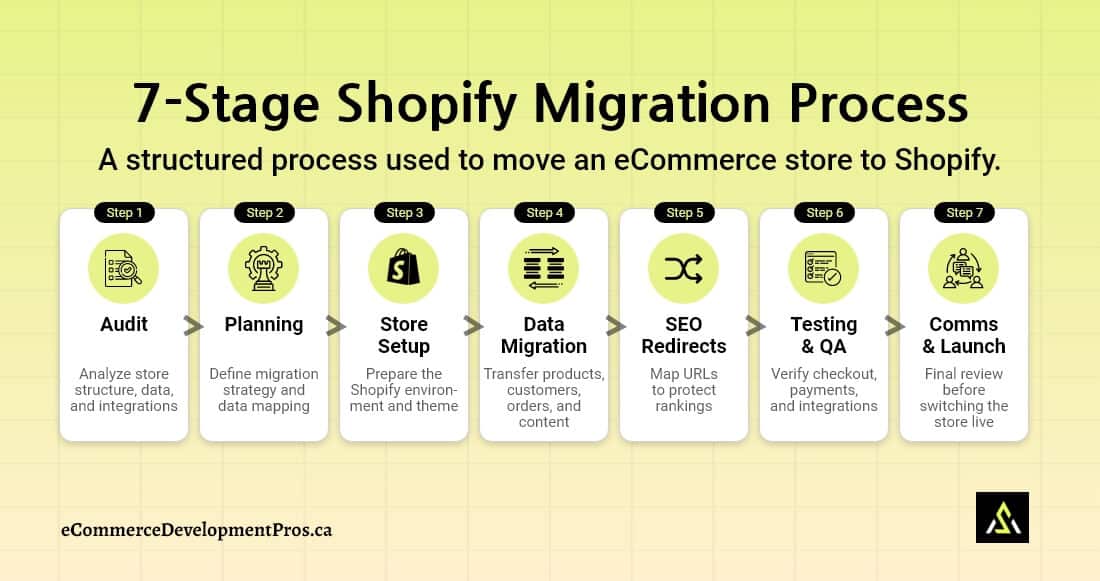
Each stage depends on the one before it. Small missteps early on often lead to bigger problems later.
Why the Migration Process Sequence Matters
You don’t need to follow a strict timeline for every task. But the order still matters.
Each phase depends on the one before it. If something is done too early—or skipped—it usually creates problems later.
Here’s what that looks like in real situations:
- If you move data before setting up the store structure: Products may not land in the right collections, URLs won’t match, and you’ll end up fixing things manually.
- If you skip redirect planning until the end: Old links can break, and search traffic may drop because pages no longer point to the right place.
- If testing is rushed or incomplete, Issues don’t show up until customers start using the site—failed payments, missing shipping rates, or login problems.
In most cases, these aren’t technical issues but sequence issues.
Taking a few extra steps in the right order saves a lot of cleanup after launch.
That’s why everything starts with planning.
If the foundation isn’t clear at this stage, issues tend to carry forward into data migration, SEO setup, and testing.
Phase 1 – Audit, Planning & Preparation Checklist
This is where most of the important decisions happen. It sets the direction for everything that follows — from how your data is structured to how your URLs and SEO are handled.
If this phase is rushed, issues usually don’t show up immediately. They surface later, during testing or after launch.
a. Content Freeze
Before anything moves, stop making changes to the current store.
No new products. No edits. No updates.
Usually, this is done right before the data migration stage.
Why the content freeze is important:
- Ensures a fixed dataset
- Prevents missed updates during migration
- Makes testing more reliable
Skipping it can result in missing or outdated data at launch.
b. Prepare URL Mapping for Redirects (Don’t Skip This)
Since Shopify structures URLs differently from platforms like WooCommerce or Magento, your website URLs will change. Most of them.
If you don’t map them, old links will stop working. And search engines will treat pages as new, resulting in SEO issues.
URL Mapping |
|
|---|---|
| Old URL | New Shopify URL |
| /product/red-shoes | /products/red-shoes |
| /category/shoes | /collections/shoes |
| /about-us | /pages/about-us |
This mapping is what you’ll use to create redirects and preserve SEO.
Do it early. Doing it later is messy.
c. Understand Platform Limitations Before Migration
A common assumption is that everything will just “move” from existing platforms like WooCommerce, Magento, or another system to Shopify.
It won’t.
Some things need to be rebuilt or handled differently.
Common Migration Gaps to Plan For |
||
|---|---|---|
| Area | What Changes | What to Plan |
| Customer passwords | Customer data moves, but passwords don’t, as Shopify uses a different encryption method. | Customers will need to reset passwords after launch. Plan an email for that so it doesn’t turn into support requests. |
| Reviews/subscriptions | Review apps and subscription tools don’t transfer cleanly. Some data may not come through at all or need manual work. | You’ll need to reconnect apps on Shopify and bring data in again where possible. In some cases, you just start fresh. |
| Custom features | Anything custom-built on your old platform won’t exist in Shopify. | Identify critical features, check for suitable Shopify apps, and build a custom app if needed. |
| URL differences | Shopify uses a different URL structure, so your existing links won’t carry over. | Map old URLs to the new ones and set up redirects. This is what protects your SEO. |
| Checkout changes | Checkout is more locked down on standard Shopify plans. | If your current checkout has custom logic, you’ll need to simplify it—or use Shopify Plus. |
Quick Planning Check
Before you go further, take a quick look at this:
| ✔ | Item | Note |
| ☐ | Content freeze decided | No edits happening during migration |
| ☐ | URLs mapped | Old → new links are clear |
| ☐ | Redirects planning is in place | Avoid broken pages |
| ☐ | Known gaps listed | You know what needs rebuilding |
If all of these are in place, you’re ready to move into the next phase: Shopify Store Setup.
Phase 2 – Shopify Store Setup Checklist
Before moving any data, set up your Shopify store structure and core settings.
This phase focuses on selecting a theme, configuring core settings, and replacing old functionality with the right Shopify apps.
Take a bit of time here. It saves rework later.
a. Choose the Right Shopify Theme
Don’t pick a theme just because it looks nice in the demo.
Select the right Shopify theme that matches how your store works.
Choosing the Right Shopify Theme |
||
|---|---|---|
| Store Type | What to Use | Why does it make sense |
| Small catalog (1–20 products) | Free or lightweight theme | Faster setup, fewer things to manage |
| Medium catalog (20–200 products) | Paid theme | Better layouts, filtering, and product organization |
| Large catalog (200+ products) | Paid or custom theme | You’ll need stronger navigation and flexibility |
| Single product/subscription | Conversion-focused theme | More like a landing page than a catalog |
| B2B / wholesale | Custom or advanced theme | Usually needs structured layouts and logic |
If the theme doesn’t support how customers browse… everything else becomes harder.
b. Set Up Core Store Settings
If the theme doesn’t support how customers browse… everything else becomes harder.
Before installing apps, configure the basics:
- Payments (Shopify Payments, third-party gateways)
- Shipping (zones, rates, rules)
- Taxes (based on regions)
- Policies (refund, privacy, terms)
Nothing fancy here—but missing something can break the buying experience.
c. Replace Apps and Integrations
Your old plugins/extensions from the old platform won’t migrate over to Shopify as is.
So you’ll need to rebuild that functionality inside Shopify using Shopify apps or a custom one.
Here’s what that usually looks like:
Replacing Apps During Shopify Migration (With Examples) |
|
|---|---|
| Function | Shopify Alternative |
| Product review apps | Review apps – Judge.me, Loox, or any other |
| Subscriptions apps | Subscription apps- Recharge, Skio, or any other |
| Email marketing apps | Klaviyo or Shopify Email |
| Custom features apps | Shopify apps or custom development |
Try not to overload the store with apps right away.
Start with what’s needed to launch. Add more once everything is stable.
Quick Store Setup Checklist
Before moving to the next phase, run through this once:
Store Setup Checklist |
||
|---|---|---|
| ✔ | Task | Quick Note |
| ☐ | The theme is selected and set up | Matches your catalog and structure |
| ☐ | Core settings are done | Payments, shipping, taxes |
| ☐ | Apps Installed | Only the essentials for now |
| ☐ | Policies are live | Legal pages in place |
| ☐ | Testing done | Apps and store functions like add to cart and checkout have been tested |
Once this part is sorted, you’re in a good place to start migrating data into Shopify.
That’s where things get a bit more detailed.
Phase 3 – Data Migration Checklist
Data migration timeline varies significantly based on volume and data quality — typically 3 to 10 days. For context on how this phase fits into the full project schedule, see how long Shopify migration takes.
With the store setup done, everything now moves into Shopify. This is where products, customers, orders, and content are transferred into the new store.
a. Product Variants — where things usually go wrong
This is one of the most common trouble areas.
Things to watch while importing:
- Variants should be grouped properly (size, color, etc.)
- Option names shouldn’t vary randomly (e.g., “Size” vs “size”)
- SKUs need to be unique—duplicates cause issues
- Pricing and inventory should match what you had before
b. Check Image Mapping
Just go through and check:
- Variant-specific images are actually linked correctly
- No missing images (happens more often than expected)
- No duplicates from import errors
- Order looks right on product pages
c. Handle Customer Account Passwords
Customer data will come over—but passwords won’t. That’s expected with Shopify.
So after launch:
- Customers will need to reset their passwords
- You should plan an email for this, informing customers about the change
Quick Data Migration Checklist
Before jumping to the next step, just confirm things look right:
Data Migration Checklist |
||
|---|---|---|
| ✔ | What to look at | Notes |
| ☐ | Product variants look correct | Options, SKUs, and pricing are all aligned |
| ☐ | Images are in place | Right images, right variants |
| ☐ | Customer data is there | Emails and records imported |
| ☐ | Password reset planned | Communication ready |
| ☐ | Missing data checked | Anything from apps/custom fields reviewed |
Once this looks clean, you can move on.
Next step is making sure everything—especially SEO—holds up before launch.
Phase 4 – SEO Preservation & Testing Checklist for Shopify Migration
This is usually where things slip.
Search engines don’t care about the new design. They follow URLs, links, and page data.
If those don’t line up, rankings drop.
The first step to preserve SEO is:
a. Setting Up 301 Redirects
Once URLs change, old links need somewhere to go, and redirects tell search engines where the content has moved.
If 301 redirects are NOT in place, the:
- Your old URLs stop loading and show a 404 page not found error.
- Search engines treat these pages as new
- Traffic disappears
- SEO equity is NOT transferred, and rankings can be lost
Go through and confirm:
- Old URLs land on the right Shopify pages
- No important page is missing
- Check if the redirects actually work (open a few and check)
URL mapping and redirect setup is one of the most detail-intensive steps in this phase. For the full process, including the mapping spreadsheet template and Shopify CSV upload instructions, see the Shopify URL redirects migration guide.
b. Metadata Migration
Metadata helps search engines understand your pages. Just check a few pages manually:
- Page titles look right
- Meta descriptions didn’t get wiped
- Images still have ALT text
If something’s off, fix it now—not after indexing.
c. Canonical Tags Check
Canonical tags tell search engines which version of a page should be indexed. Shopify handles this, but don’t assume it’s perfect. Look for:
- Pages pointing to themselves (in most cases)
- No weird duplicates
- Products and collections not clashing
d. Review Internal Linking
Internal links help search engines crawl your site.
Do a quick sweep after migration:
- Update links pointing to old URLs
- Check the menu, footer, and any links inside the content
- Update what you find as broken links slow down crawling.
Quick SEO Migration Checklist (before you move on)
Go through this once. Don’t rush it.
SEO Preservation and Testing Checklist |
||
|---|---|---|
| ✔ | What to check | Notes |
| ☐ | Redirects | Open a few old URLs and see where they land. Verify that all main pages have been covered. |
| ☐ | Metadata | Spot check pages—titles, descriptions, and image ALT text should still be there. |
| ☐ | Canonicals | Double-check that canonical URLs are consistent and free of duplication issues. |
| ☐ | Internal links | Make sure all internal links—including those in menus, footers, and page content—lead to the new Shopify URLs. |
| ☐ | Sitemap | Verify that the sitemap has been added and is reachable in Google Search Console. |
| ☐ | Indexing | Check if main pages are getting picked up. Not everything will index immediately, but some should. |
Once your SEO foundation is in place, the final step is testing your store before going live.
Phase 5 – Shopify Pre-Launch Testing Checklist
Go through the store as a customer would: add products to the cart, complete checkout and payment, and browse around to check everything works.
Before going live, browse the store as a customer would.
Add to cart. Go through checkout. Complete payment. Click around.
This is where small issues show up—wrong shipping rates, broken links, apps not behaving properly. Better to catch them now.
Launch readiness checklist |
||
|---|---|---|
| ✔ | Area | What to look at |
| ☐ | Apps & integrations | Reviews, subscriptions, email flows—whatever you’ve installed is working as expected. |
| ☐ | Checkout & payments | Place a test order. Go through different payment options and confirm that taxes and shipping display properly. |
| ☐ | Order flow | Order confirmation emails, notifications, and status updates are coming through. |
| ☐ | Navigation & search | Menus, collections, and footer links are all working. Nothing leading to empty or wrong pages. Search brings correct results. |
| ☐ | Product pages | Verify if variants, images, pricing, and inventory show as expected |
| ☐ | Forms | Ensure the contact form, registration/login, and newsletter signup submit without errors. |
| ☐ | Mobile & tablet devices | Open the store on phone and tablet. The layout should render correctly |
Once this looks good, you’re ready to go live.
Phase 6 – Shopify Post-Launch Checklist
The store is live, but this is the point where you need to start validating everything in a real environment.
Some issues only appear after launch—when actual users interact with the store, place orders, and move through different flows.
Submit Sitemap and Check Indexing
Once your store is live:
- Submit your sitemap to Google Search Console
- Request indexing for key pages (homepage, collections, top products)
- Check which pages are getting indexed
- Monitor redirects and crawl errors and fix them early to avoid traffic loss.
First few days — keep checking and go through the following checklist the next couple of days.
Post-Launch Checklist |
||
|---|---|---|
| ✔ | Area | What to Check |
| ☐ | Redirects | Try a few old links manually. They should open the right pages, not errors. |
| ☐ | SEO performance | Check traffic and rankings. A small fluctuation is normal, a drop isn’t. |
| ☐ | Google Search Console | Look for new errors. Anything unexpected usually shows up here first. |
| ☐ | Orders & checkout | Place a real order and make sure payments, taxes, and shipping are calculated correctly. |
| ☐ | Site performance | Make sure pages load fast, and performance is strong. |
| ☐ | Customer accounts | Customer password reset communication has been sent, and they are able to reset/accounts without any errors. |
| ☐ | Emails | Order confirmations, notifications, and flows |
| ☐ | Analytics tracking | GA4, Meta Pixel, and other tools are functioning without errors. |
Customer Communication (Must-Do)
Announce the new Shopify store launch across email and social media. Provide password reset instructions and highlight changes to login or checkout to reduce confusion and support requests.
Final Thoughts on Your Shopify Migration Checklist
Most Shopify migrations don’t fail because they’re complex. They fail because small steps get skipped.
- A missing redirect
- An untested checkout
- A detail that felt “minor” at the time
That’s usually where things break.
If you follow this checklist properly, it becomes more than a guide—it becomes a way to catch those small gaps before they turn into bigger problems.
And if you want to go deeper into specific parts of the process, you can explore:
- Shopify migration process
- Shopify URL redirect strategy for SEO-safe migrations
- Shopify migration SEO- Will you lose SEO when migrating to Shopify
- Shopify data migration
Take it step by step, follow the sequence, and most of the common migration issues simply don’t show up.

Download the Shopify Migration Checklist (Free PDF)
Download the complete Shopify Migration Checklist PDF and track every step—from planning to post-launch—without missing anything important.
- Printable and easy to follow
- Covers all 7 phases of migration
- Helps you avoid common (and costly) mistakes
Need a hand? Book a Quick Planning Call